Online lessons worldwide · In-person coaching in MD, DC & Northern VA hello@revertmusic.com
Simple equipment · Clear camera angles

Online Lesson Setup

A practical guide to the screens, camera angles, audio settings, and equipment that make online music lessons clear and easy to follow.

A smartphone provides an excellent lesson camera

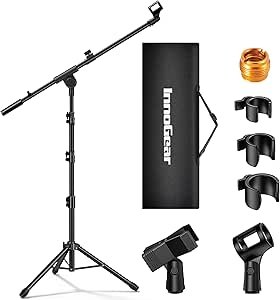
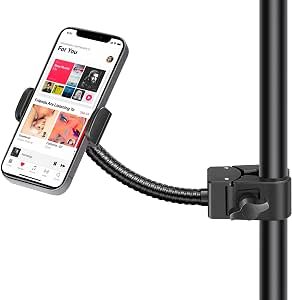
A modern iPhone or Android phone provides excellent video quality when mounted securely. For most lessons, the computer’s built-in camera may be enough. Piano lessons work best with two devices: a computer or tablet in front of the student and a smartphone above or beside the keyboard.

Start With These Four Things

Computer or Tablet

Use the largest reliable screen available. For piano, add a smartphone above or beside the keys as a second camera.

Stable Internet

Ethernet is ideal; strong Wi-Fi also works.

Clear Audio

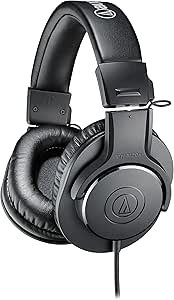
Wired headphones help prevent echo.

Power Connected

Keep every lesson device charging.

Piano Lessons

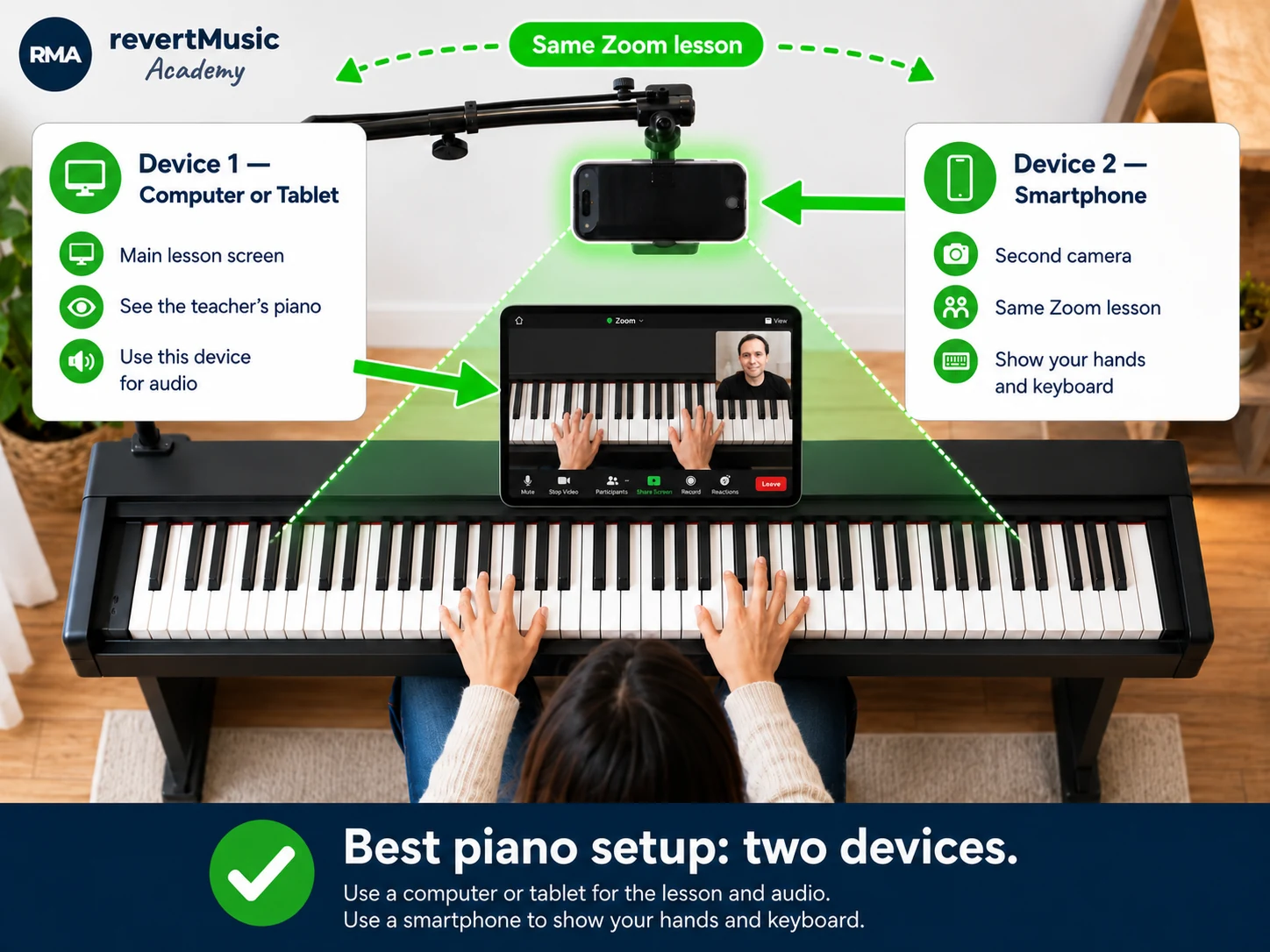
Use a computer or tablet in front of the student and a smartphone as the second camera. Both devices join the same Zoom lesson, but only the main device handles audio.

Recommended two-device setup for online piano lessons: a computer or tablet in front of the student and a smartphone mounted above the keyboard, both connected to the same Zoom lesson.
For piano lessons, keep Device 1 in front of the student and use Device 2 as the camera above or beside the keyboard.

Two-Device Piano Setup

1

Computer or Tablet

Place it directly in front of the student. Use it to see the teacher’s piano, demonstrations, shared music, annotations, and on-screen instructions. Keep the microphone, speakers, or headphones connected here.

2

Smartphone Camera

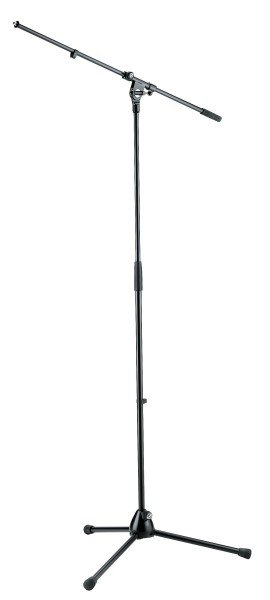
Mount it above the keyboard whenever possible, or beside the piano as an alternative. Join the same Zoom lesson with video on, then disconnect its Zoom audio to prevent echo.

Important: Both devices should join the same Zoom lesson, but only the computer or tablet should handle lesson audio.

Before the Lesson

Confirm that both devices are in the same Zoom lesson, disconnect Zoom audio on the smartphone, check that both hands are visible, connect both devices to power, and turn on Original Sound for Musicians on the main device.

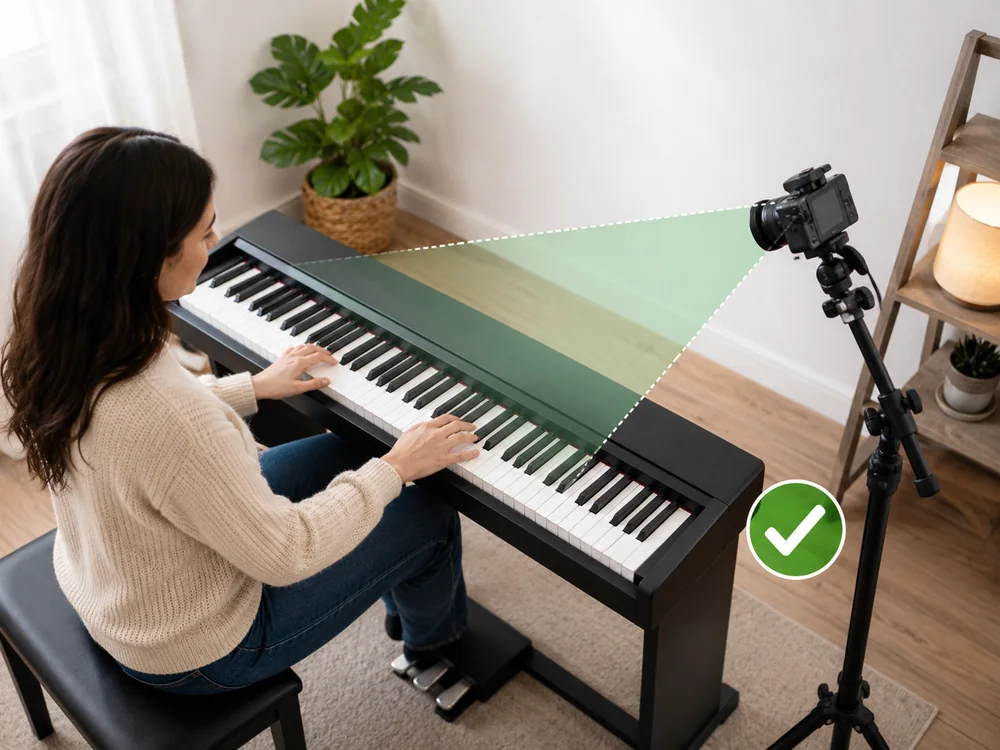
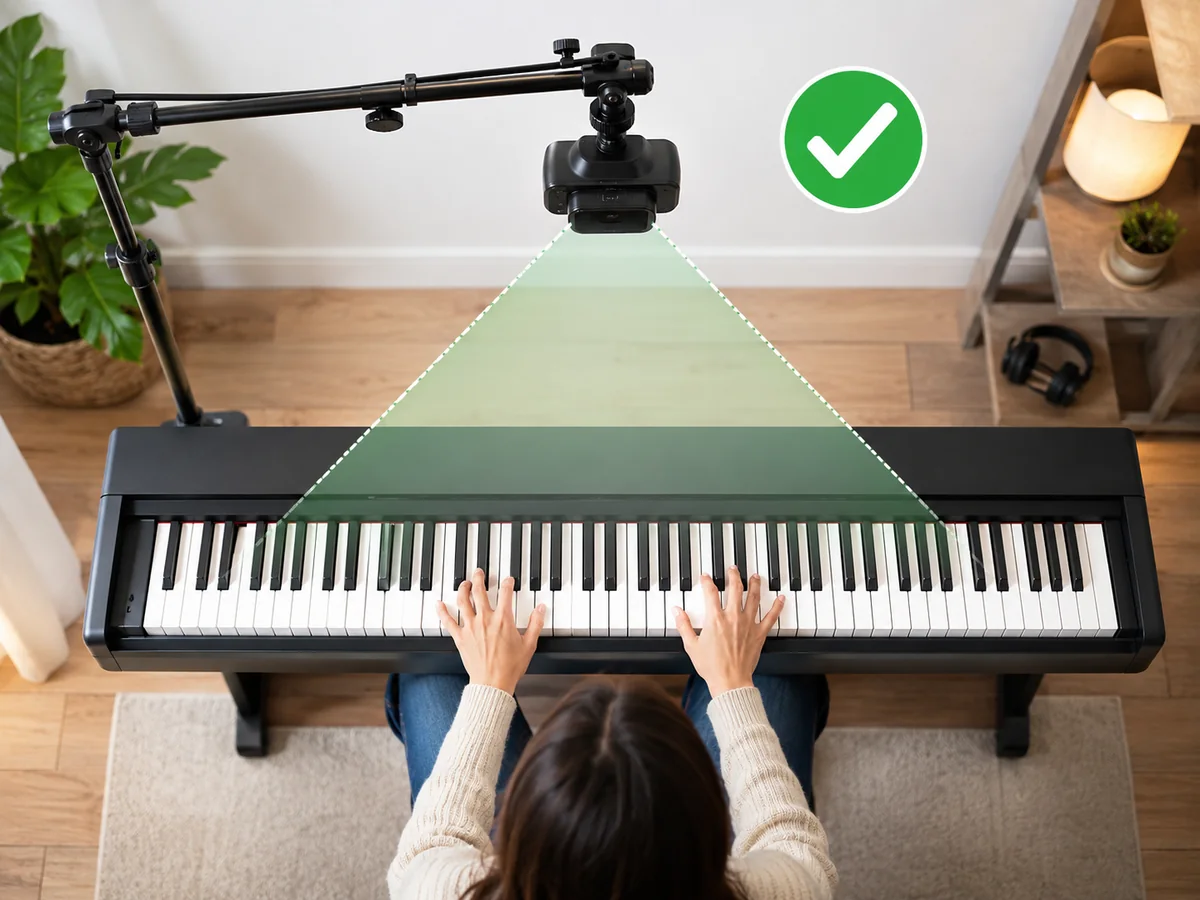
Preferred overhead smartphone camera position above a piano keyboard, showing both hands and the keys. Preferred Setup

Overhead Smartphone Camera

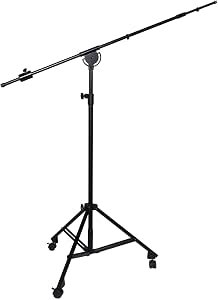
Mount the smartphone directly above the keyboard so the teacher can see both hands, fingering, and movement across as much of the instrument as possible.

  • Both hands visible
  • Most of the keyboard visible
  • Camera completely stable
Alternative side smartphone camera position beside a piano, angled downward toward both hands. Alternative

Side Smartphone Camera

When an overhead mount is not practical, place the smartphone beside the piano, slightly above the keys and angled downward. Keep both hands and as much of the keyboard as possible in frame.

  • Good fallback option
  • Keep the angle stable
  • Avoid blocking either hand

Other Setups

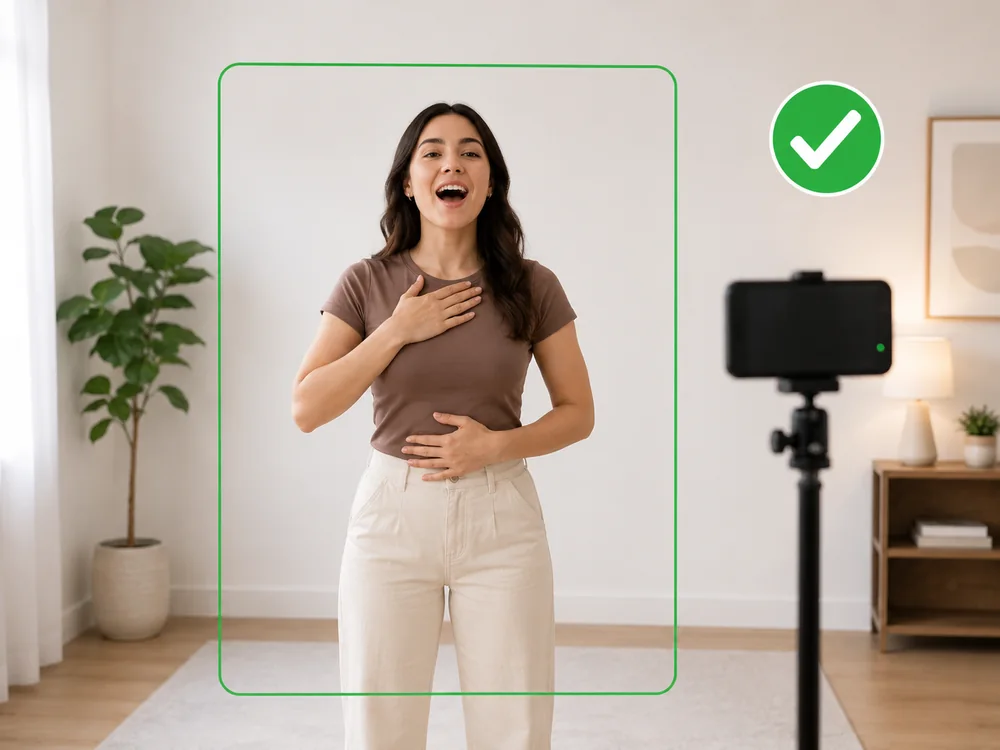
Voice student standing in front of a camera positioned at eye level.

Voice

Place the camera directly in front at eye level. Stand far enough back to show the head, shoulders, torso, and breathing posture.

Eye levelHead to waistStanding space
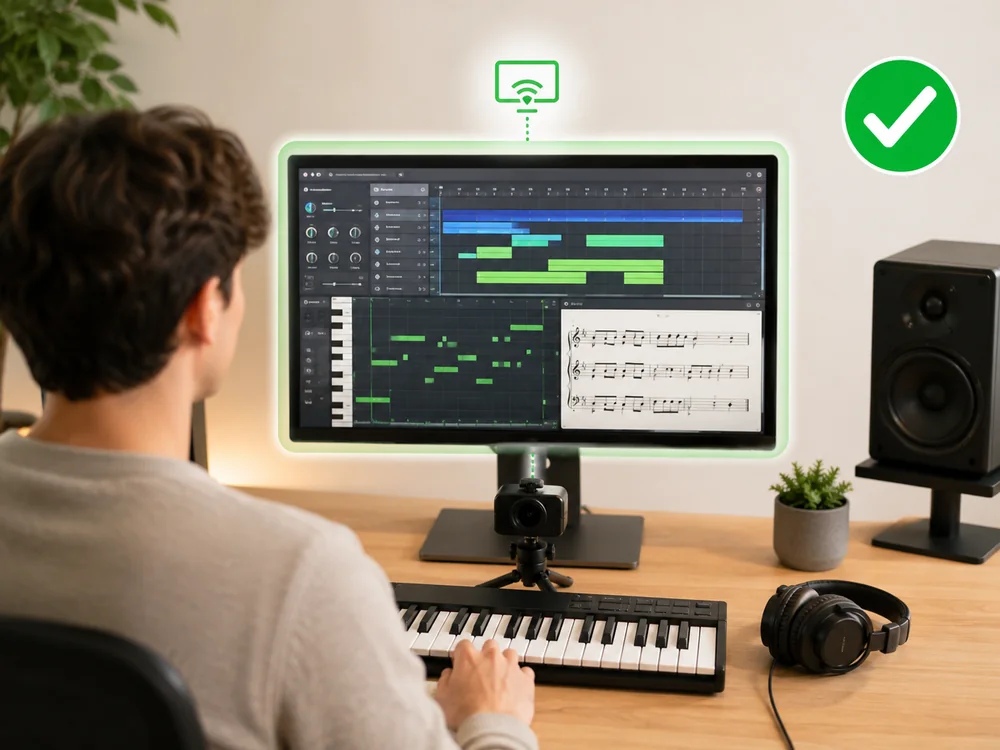
Music student at a computer using screen sharing, headphones, and a piano.

Computer-Based Lessons

Composition, songwriting, arranging, orchestration, music theory, and production usually use one computer with screen sharing. The computer’s built-in camera is normally sufficient.

Composition & Orchestration
Songwriting & Arranging
Music Theory & Notation
Production & DAW Coaching
Built-in cameraScreen shareHeadphonesPiano nearby when useful

Recommended Equipment

I curated these options to make setup easier. Similar equipment you already own will usually work just as well.

Affiliate disclosure: Some links below are Amazon affiliate links. RMA may earn a commission from qualifying purchases at no additional cost to you.

Essential devices

Start with what you already have

Computer or tablet used as the main device for an online music lesson.
MAIN LESSON DEVICE

Computer or Tablet

Required for seeing the teacher, lesson materials, and screen sharing. This device handles the lesson audio.

Smartphone used as a second camera for online piano lessons.
PIANO SECOND CAMERA

Smartphone

Recommended for piano lessons to show both hands and the keyboard. A recent iPhone or Android phone is usually sufficient.

These are curated starting points, not mandatory purchases. Comparable equipment with the same function will usually work.

Zoom & Audio Setup

Some instructions that you may need.

Zoom Setup: Main Device
  1. Open the lesson link on the computer or tablet first.
  2. Connect the microphone and speakers on this device only.
  3. Use wired headphones when available.
  4. Keep this device in front of the student for conversation, screen sharing, and lesson materials.

One device handles all sound. The phone camera should not connect to Zoom audio.

Use a Phone as a Second Camera
  1. Connect the phone to stable Wi-Fi and plug it into power.
  2. Open the same Zoom lesson link on the phone.
  3. Join with a name such as “Daniel – Piano Camera.”
  4. Do not join audio on the phone. If it connects automatically, tap More → Disconnect Audio.
  5. Turn on video, use the rear camera, place the phone horizontally, and aim it at the piano.

Muting the phone is not enough. Disconnect its Zoom audio completely to prevent echo.

Windows, Mac, and Chromebook: this method works on all of them because the phone joins as a separate Zoom participant.

Mac shortcut: an iPhone can also be selected as a Zoom camera through Apple Continuity Camera, wirelessly or by USB. For two simultaneous views, joining Zoom separately on the phone is usually simpler.

Original Sound for Musicians
  1. On the main computer, open Zoom Settings → Audio.
  2. Under Microphone modes or Audio Profile, choose Original sound for musicians.
  3. At the start of the lesson, confirm that Original Sound for Musicians is active.
  4. Leave Stereo and High-fidelity music mode off unless the teacher asks you to enable them.

For composition, notation, or production lessons, use Share Screen and include Computer Audio / Share Sound when playing music from the computer.

Internet & Connection
  • Main computer: Ethernet is best when practical.
  • Phone camera: stable home Wi-Fi is preferable to cellular data.
  • The two devices do not technically need the same network, but using the same reliable home connection is simplest.
  • Pause cloud backups, game downloads, and video streaming during the lesson.
  • Keep both devices connected to power.

Best practical setup: computer on Ethernet, phone on strong Wi-Fi, and audio connected only on the computer.

Main DeviceComputer or tablet with Zoom audio connected
Camera DevicePhone on stable Wi-Fi with Zoom audio disconnected
PowerKeep both devices charging during the lesson

Not Sure Where to Put the Camera?

Send a photo of the room and instrument before the first lesson, and I will recommend the simplest workable position.

Ask About Your Setup